

There is a git repository at ssh://bandit28-git@localhost/home/bandit28-git/repo via the port 2220. The password for the user bandit28-git is the same as for the user bandit28.
Here are the details which we have from the previous level:
- Host:
bandit.labs.overthewire.org - Port:
2220 - Username:
bandit28 - Password:
Yz9IpL0sBcCeuG7m9uQFt8ZNpS4HZRcN
This level is similar like previous level, we are again dealing with a git repository located at ssh://bandit28-git@localhost/home/bandit28-git/repo via port 2220. The password for the user bandit28-git is the same as for the user bandit28. Let’s construct the command to clone the repository to our system.
Since, we are dealing with Git, let’s understand what is Git first!, it is a distributed version control system (DVCS) designed to handle everything from small to very large projects with speed and efficiency. It is widely used for software development and other version control tasks. Git tracks changes to files, allowing multiple people to collaborate on the same project, and provides powerful tools for branching, merging, and rewriting project history.
The repository is hosted on the localhost of the server, So the server address for us will be bandit.labs.overthewire.org instead of localhost in our command.
git clone ssh://[email protected]:2220/home/bandit28-git/repo
This will prompt for the password because the repository is password-protected. We need to enter the password of bandit28 because The password for the user bandit28-git is the same as bandit28.
Explore the Repository
After cloning the repository, navigate into it and list its contents.
cd repo
ls -a
# Output:
# .git  README.md
Check the README File
Read the README.md file to see if it contains the password.
cat README.md
# Output:
# Bandit Notes
# Some notes for level29 of bandit.
#
# ## credentials
#
# - username: bandit29
# - password: xxxxxxxxxx
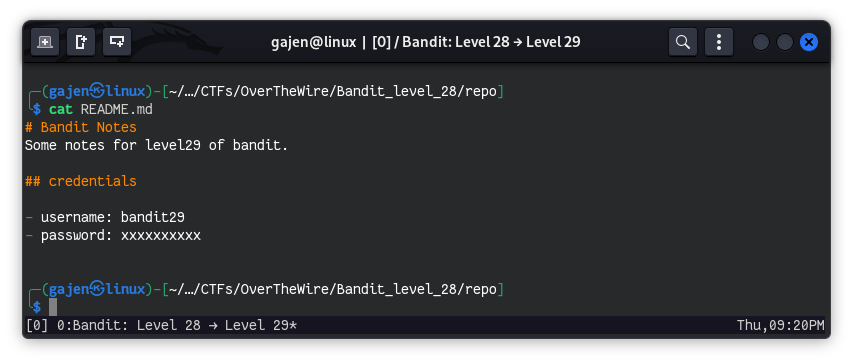
The README.md file’s password field has been modified. There might be an unmodified version of the README.md file in a previous version. We need to check the commit history.
View the Git Commit History
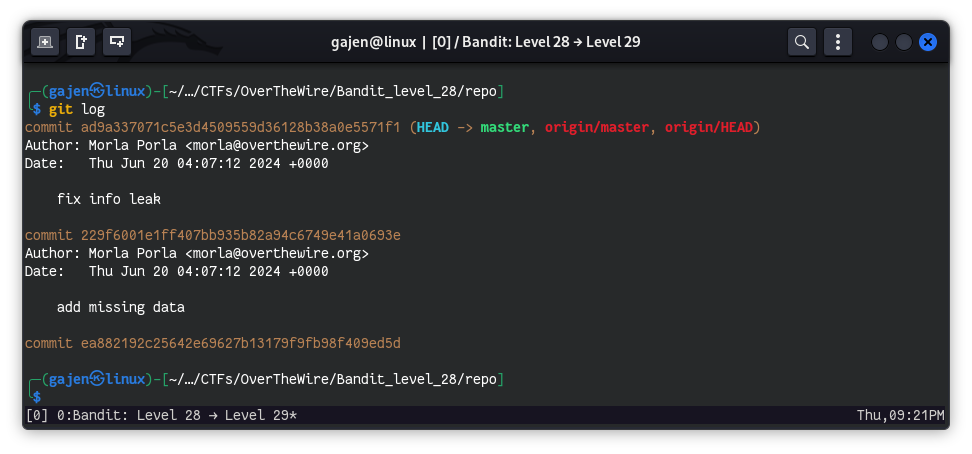
Use git log to view the commit history. This command shows all the commits made to the repository.
git log
# Output:
# commit ad9a337071c5e3d4509559d36128b38a0e5571f1 (HEAD -> master, origin/master, origin/HEAD)
# Author: Morla Porla <[email protected]>
# Date:   Thu Jun 20 04:07:12 2024 +0000
#
#     fix info leak
#
# commit 229f6001e1ff407bb935b82a94c6749e41a0693e
# Author: Morla Porla <[email protected]>
# Date:   Thu Jun 20 04:07:12 2024 +0000
#
#     add missing data
#
# commit ea882192c25642e69627b13179f9fb98f409ed5d
# Author: Ben Dover <[email protected]>
# Date:   Thu Jun 20 04:07:12 2024 +0000
#
#     initial commit of README.md
Examine a Specific Commit
To see what changes were made in the previous commit, use git show followed by the commit ID. In this case, we are interested in the commit with the message fix info leak.
git show 229f6001e1ff407bb935b82a94c6749e41a0693e
# Output:
# commit 229f6001e1ff407bb935b82a94c6749e41a0693e
# Author: Morla Porla <[email protected]>
# Date:   Thu Jun 20 04:07:12 2024 +0000
#
#     add missing data
#
# diff --git a/README.md b/README.md
# index 7ba2d2f..d4e3b74 100644
# --- a/README.md
# +++ b/README.md
# @@ -4,5 +4,5 @@ Some notes for level29 of bandit.
#  ## credentials
#
#  - username: bandit29
# -- password: <TBD>
# +- password: 4pT1t5DENaYuqnqvadYs1oE4QLCdjmJ7
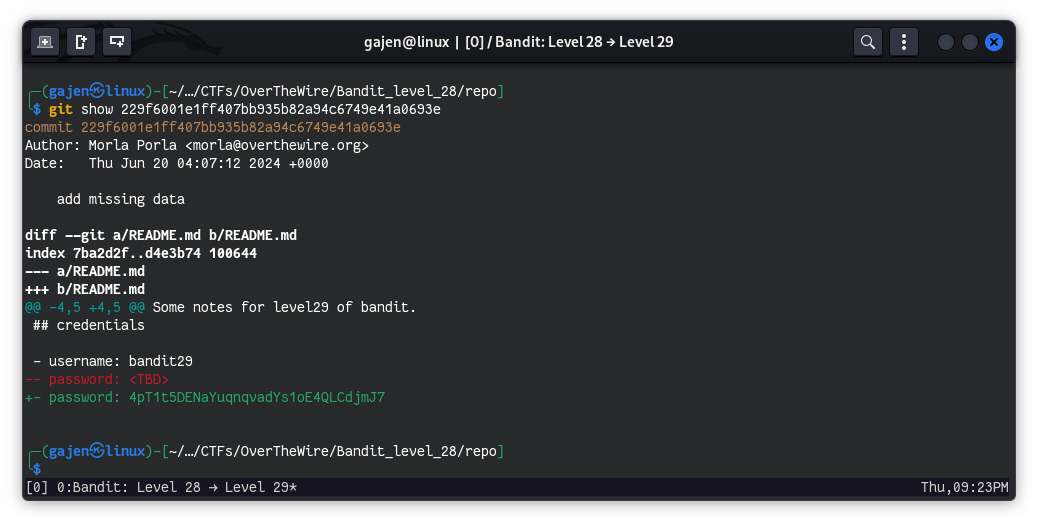
The password for the next level bandit29 is found in the previous version of the README.md file.