
Logging in to bandit26 from bandit25 should be fairly easy… The shell for user bandit26 is not /bin/bash, but something else. Find out what it is, how it works and how to break out of it.
Here are the details which we have from the previous level:
- Host:
bandit.labs.overthewire.org - Port:
2220 - Username:
bandit25 - Password:
iCi86ttT4KSNe1armKiwbQNmB3YJP3q4
So, The SSH syntax will be:
sshpass -p iCi86ttT4KSNe1armKiwbQNmB3YJP3q4 ssh [email protected] -p 2220
In this level, we need to find which shell is used by bandit26, understand how it works, and find a way to break out of it. This will involve some investigation and creativity. Let’s dive into the challenge.
1. List Files in Home Directory
First, log in to bandit25 and list the files in the home directory to see what we have access to.
ls -a
# Output:
# .  ..  .bandit24.password  bandit26.sshkey  .banner  .bash_logout  .bashrc  .flag  .pin  .profile
2. Copy bandit26 Private SSH Key to Local Machine
Lol, bandit26 SSH private key is right there in our home directory, and we have access to that file. It looks pretty straightforward. Let’s copy the bandit26 SSH private key to our local machine. We can view the contents of that file and manually copy-paste it into our own system. OR, we can copy/download it using the scp tool.
scp -P 2220 [email protected]:~/bandit26.sshkey .
This will prompt for a password. Enter the bandit25 password to transfer the file.
OR, use sshpass for automation:
sshpass -p "iCi86ttT4KSNe1armKiwbQNmB3YJP3q4" scp -P 2220 [email protected]:~/bandit26.sshkey .
3. Set Correct Permissions for SSH Key
The SSH private key needs appropriate permissions to work without errors. Otherwise, it will throw an error similar like Permissions for 'sshkey' are too open.
chmod 400 bandit26.sshkey
4. Log in to bandit26 Using the SSH Key
Attempt to log in using the SSH key.
ssh -i bandit26.sshkey [email protected] -p 2220
# Output:
# Connection to bandit.labs.overthewire.org closed.
[image]
OOPS! The connection to bandit.labs.overthewire.org closed unexpectedly. This situation feels familiar to us, as it is similar to what was encountered in Bandit: Level 18 => Level 19. Let’s try that trick.
ssh -i bandit26.sshkey [email protected] -p 2220 'ls -a'
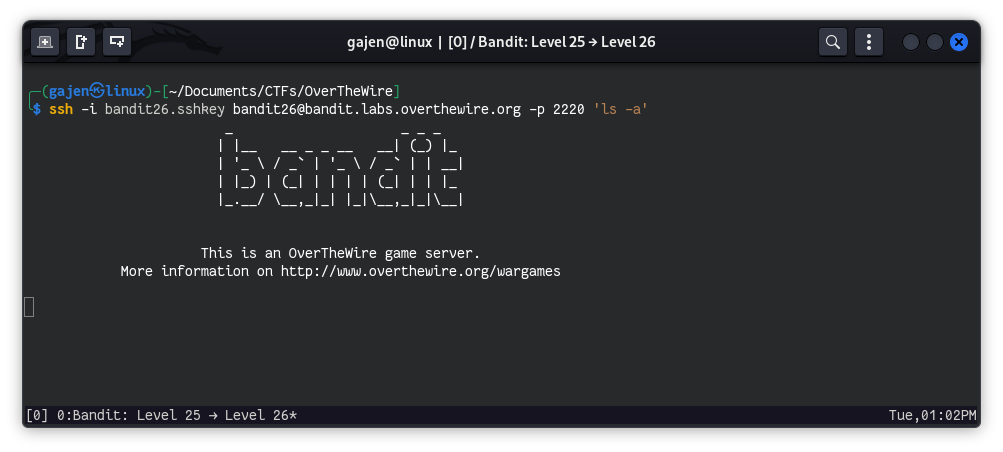
This trick didn’t work and got stuck on the Bandit logo.
If you see our hint, we need to figure out which shell is used by bandit26 and break out of it. So, let’s log in from bandit25 user, which is working fine.
sshpass -p "iCi86ttT4KSNe1armKiwbQNmB3YJP3q4" ssh -p 2220 [email protected]
5. Inspect the /etc/passwd File
The /etc/passwd file contains user information, including their login shells.
cat /etc/passwd | grep bandit26
# Output:
# bandit26:x:11026:11026:bandit level 26:/home/bandit26:/usr/bin/showtext
This is weird, I’ve never heard of the /usr/bin/showtext shell. It might be a custom shell or some kind of bash script. Let’s investigate more about this shell.
6. Examine the showtext Script
Read the showtext script to understand its behavior.
cat /usr/bin/showtext
Output:
{% code lineNumbers=“true” %}
#!/bin/sh

export TERM=linux
exec more ~/text.txt
exit 0
{% endcode %}
- The shell script located at
/usr/bin/showtextuses/bin/shas its shebang line, which means it runs its script by using the/bin/shshell. - It begins by exporting
TERMaslinux, which sets the terminal type for compatibility purposes. - The script then executes
more ~/text.txt. Unlikecat, which can overwhelm the terminal with large file content,moreallows for a controlled display of text, making it easier to read extensive file contents. - After displaying
~/text.txt, the script exits with a status code of0. Now, the name ‘showtext’ makes more sense to me because it prints~/text.txtfile contents and exits with a status code of0.
If we think carefully, export TERM=linux simply sets the value linux to the variable TERM, which doesn’t seem interesting. But, the exec more ~/text.txt line actually executes the more command to print the content of the ~/text.txt file. So, we might abuse and potentially exploit this behavior, which is our main aim for this level.
7. Researching to Exploit It
After some research, I discovered that if we shrink our terminal window size, the shell opens in interactive interface, requiring us to press Enter to scroll down. This feature is similar to how less works, so let’s reduce our terminal size to prompt an interactive session.

Voila! We now have an interactive interface. We can utilize the functionalities of the more command, which indeed has the capability to execute commands as mentioned in its man page.
8. Abusing more command to Get a Shell
We can exploit this in two potential ways: through the command mode or via the vi or vim text editor mode.
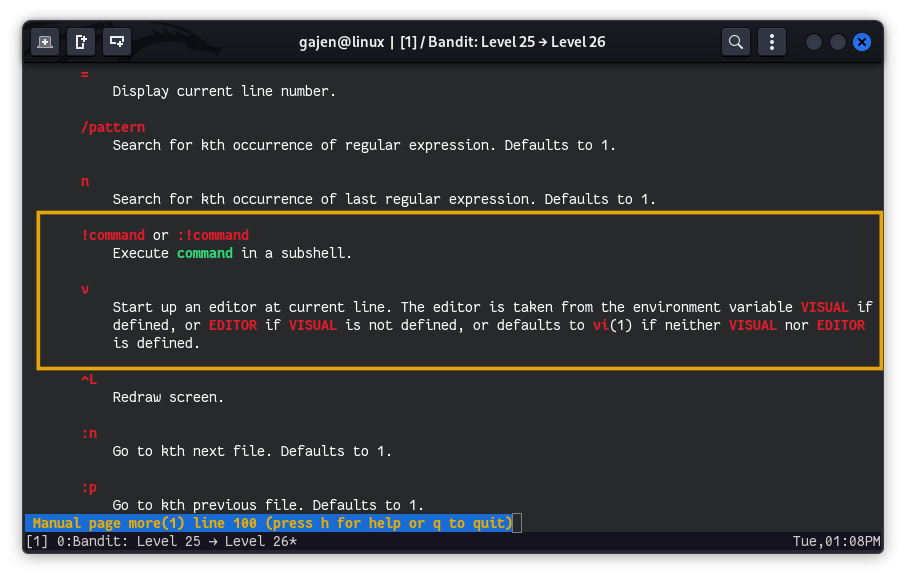
a. Attempting Command Mode (Failed)
Enter :! or ! then command to execute our command, example :!/bin/bash or !/bin/bash to get a shell.
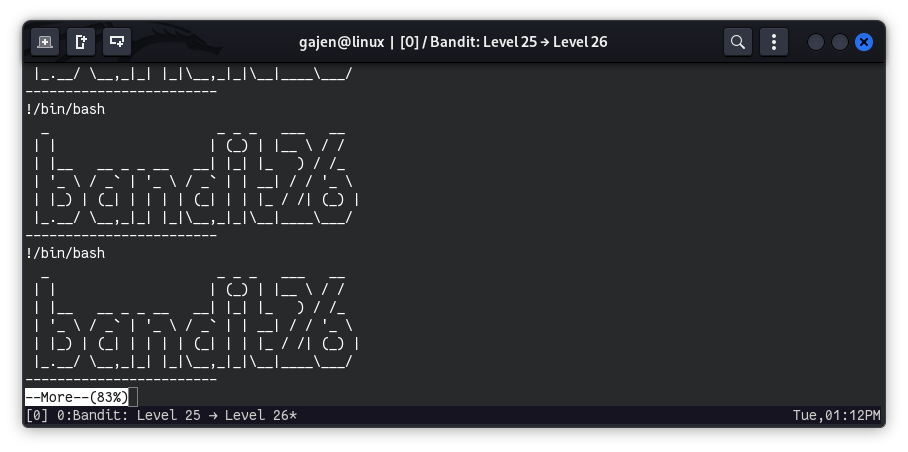
This method kinda seems failed because the default shell of bandit26 is /usr/bin/showtext. and in this method our /bin/bash is executed by the default shell /usr/bin/showtext, which is just a bash script to display ASCII art and when /bin/bash is got execute by /usr/bin/showtext it keep printing this bandit ASCII art. Which result failure of our method.
b. Using vi Editor Mode
After entering the interactive interface of more , press v to switch to vi editor mode at the current line. In vi editor mode, there’s a feature that allows us to execute commands, which is useful for our objective.
- Now, Executing to execute command to get shell.
:!/bin/bash
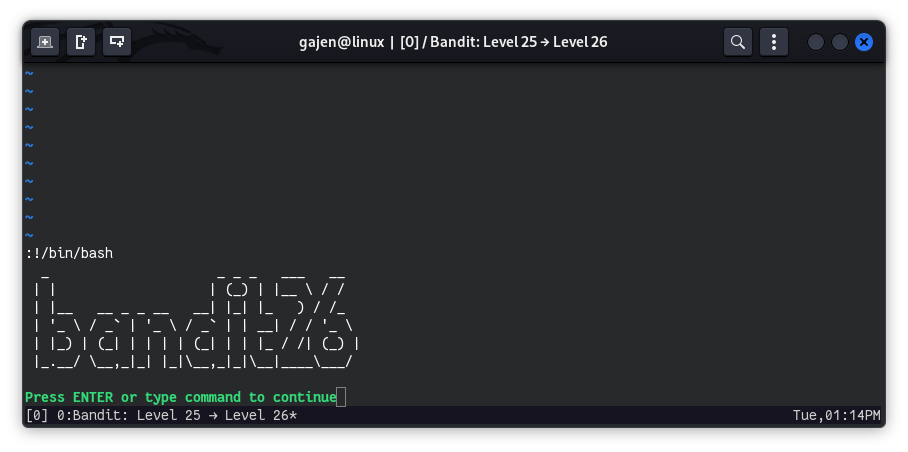
This method also seems failed because it continues to display the bandit banner. This happens because vim uses the default shell to execute commands. But hackers never give up, right? Let, read about the features and functionality of vi or vim.
After some research, I discovered that in vim, we can specify the default shell to execute our command, rather than it being executed by the default shell /usr/bin/showtext.
Let’s test this approach quickly.
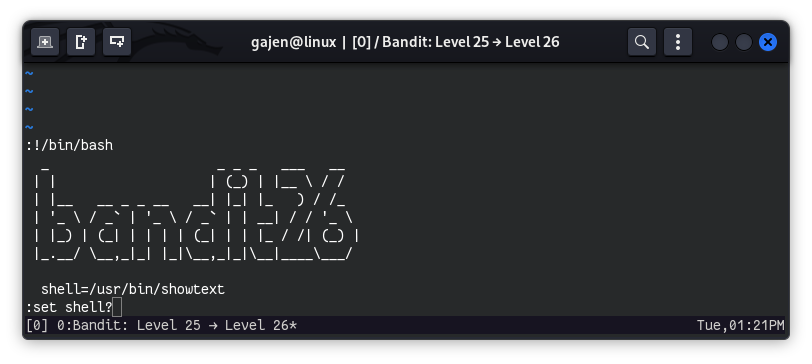
- To verify the default shell:
:set shell?
# Output:
# shell=/usr/bin/showtext
- Setting the shell to
/bin/bash:
:set shell=/bin/bash
:!/bin/bash
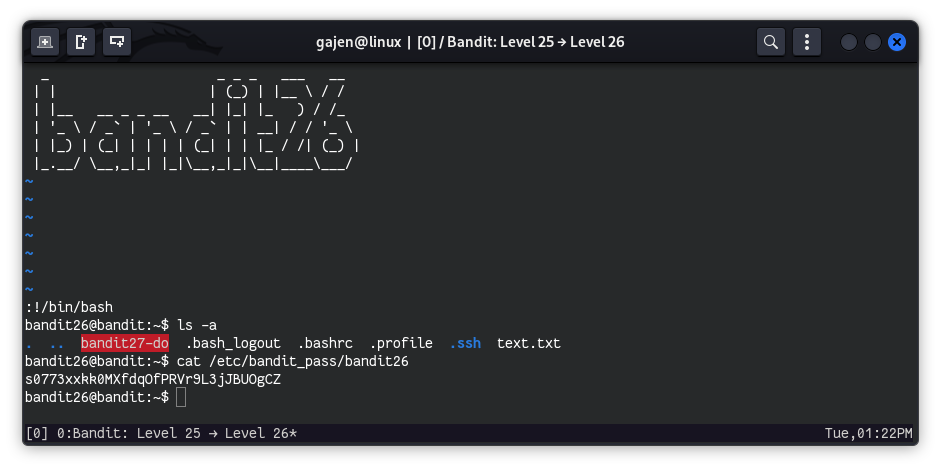
Success! We now have access to a shell.
9. Retrieve the Password for bandit26
Finally, we got a shell, Now, it’s turn to read the password of bandit26.
cat /etc/bandit_pass/bandit26
# Output:
# s0773xxkk0MXfdqOfPRVr9L3jJBUOgCZ