The password for the next level is stored in a file readme in the homedirectory. Unfortunately, someone has modified .bashrc to log you out when you log in with SSH.
Here are the details which we have from the previous level:
- Host:
bandit.labs.overthewire.org - Port:
2220 - Username:
bandit18 - Password:
x2gLTTjFwMOhQ8oWNbMN362QKxfRqGlO
So, The SSH syntax will be:
sshpass -p x2gLTTjFwMOhQ8oWNbMN362QKxfRqGlO ssh [email protected] -p 2220
OOPS! Someone has modified the .bashrc file to log out immediately upon login, displaying a “Byebye!” message. This makes it challenging to log in and interact with the system normally. However, SSH provides functionalities that allow us to execute commands without triggering the .bashrc configuration file, which is a script that runs automatically if the user’s default shell is bash or when the user switches to bash from another shell.
We can solve this challenge in two ways:
Method 1: Disabling Pseudo-Terminal Allocation
A pseudo-terminal (PTY) is a software interface that emulates a physical terminal, allowing programs to interact with the terminal as if it were a real physical terminal. PTYs are used extensively in Unix-like operating systems for functionalities such as SSH, terminal emulators, and screen multiplexers.
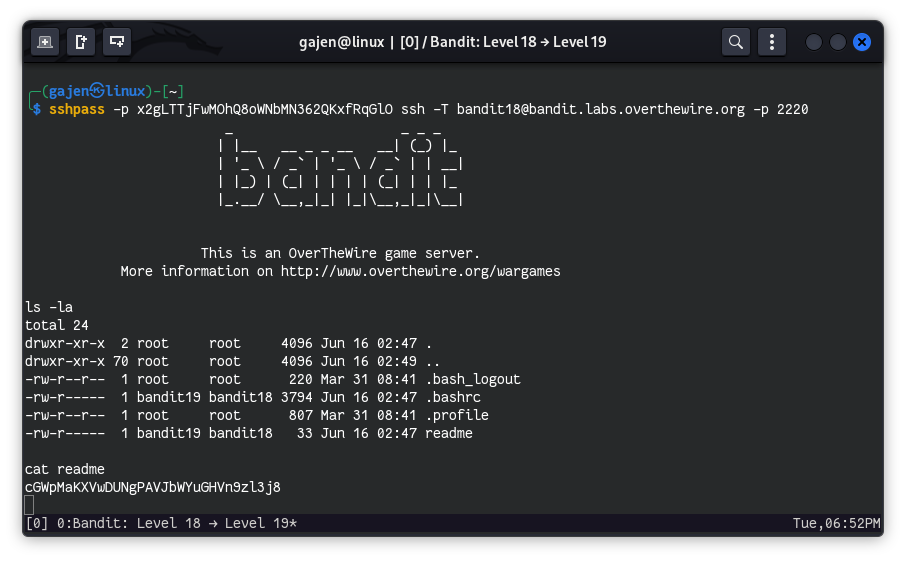
When allocating a pseudo-terminal, Unix-like operating systems check for default shell from /etc/passwd file to allocate the default shell for the user. The shell then loads its configurations, plugins, and other settings based on its configuration. To bypass triggering the .bashrc configuration during SSH login, we can disable the allocation process using the -T option.
sshpass -p 'x2gLTTjFwMOhQ8oWNbMN362QKxfRqGlO' ssh -T [email protected] -p 2220

ls -la
# Output:
# total 24
# drwxr-xr-x  2 root     root     4096 Jun 16 02:47 .
# drwxr-xr-x 70 root     root     4096 Jun 16 02:49 ..
# -rw-r--r--  1 root     root      220 Mar 31 08:41 .bash_logout
# -rw-r-----  1 bandit19 bandit18 3794 Jun 16 02:47 .bashrc
# -rw-r--r--  1 root     root      807 Mar 31 08:41 .profile
# -rw-r-----  1 bandit19 bandit18   33 Jun 16 02:47 readme

cat readme
# Output: cGWpMaKXVwDUNgPAVJbWYuGHVn9zl3j8
Method 2: Executing Commands Directly
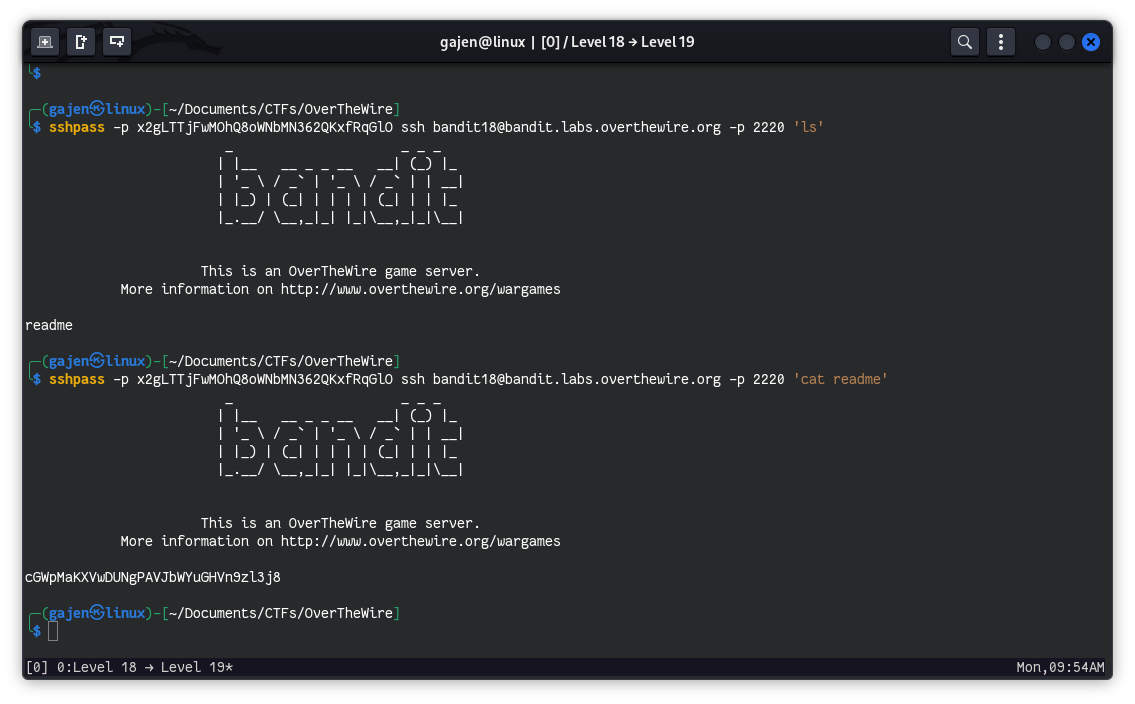
SSH provides a functionality to execute commands directly upon login and then exit the session automatically. We can utilize this feature in this scenario.
To execute the ls command to list all files:
sshpass -p 'x2gLTTjFwMOhQ8oWNbMN362QKxfRqGlO' ssh [email protected] -p 2220 'ls -a'
# Output:
# .  ..  .bash_logout  .bashrc  .profile  readme
To read the contents of the readme file:
sshpass -p 'x2gLTTjFwMOhQ8oWNbMN362QKxfRqGlO' ssh [email protected] -p 2220 'cat readme'
# Output: cGWpMaKXVwDUNgPAVJbWYuGHVn9zl3j8