The credentials for the next level can be retrieved by submitting the password of the current level to a port on localhost in the range 31000 to 32000. First find out which of these ports have a server listening on them. Then find out which of those speak SSL and which don’t. There is only 1 server that will give the next credentials, the others will simply send back to you whatever you send to it.
Here are the details which we have from the previous level:
- Host:
bandit.labs.overthewire.org - Port:
2220 - Username:
bandit16 - Password:
kSkvUpMQ7lBYyCM4GBPvCvT1BfWRy0Dx
So, The SSH syntax will be:
sshpass -p kSkvUpMQ7lBYyCM4GBPvCvT1BfWRy0Dx ssh [email protected] -p 2220
Since we have to submit the current level bandit16 password to a port on localhost in the range of 31000 to 32000, it would take a lot of time if we start submitting one by one on these ports. So, we need to write a script to automate this process. We can use any scripting language to write the script. I prefer to use bash in this case because it is easier and we are currently using the bash shell. So, We don’t need to worry about whether a particular language binary is installed/present on the system.
for port in {31000..32000};do
        if
                nc localhost $port -zvw1 &>/dev/null;then
                echo "$port submitting the password of the current level to a port"
                echo kSkvUpMQ7lBYyCM4GBPvCvT1BfWRy0Dx | ncat localhost $port --ssl 2>/dev/null
        fi
done
for port in {31000..32000}; do: Loops through the port range from 31000 to 32000.if nc localhost $port -zvw1 &>/dev/null; then: Checks if the port is open.echo "$port: Submitting the password of the current level": Prints the port number being tested.echo kSkvUpMQ7lBYyCM4GBPvCvT1BfWRy0Dx | ncat --ssl localhost $port 2>/dev/null: Submits the password to the open port using SSL encryption.fi: Ends the if statement.done: Ends the for loop.
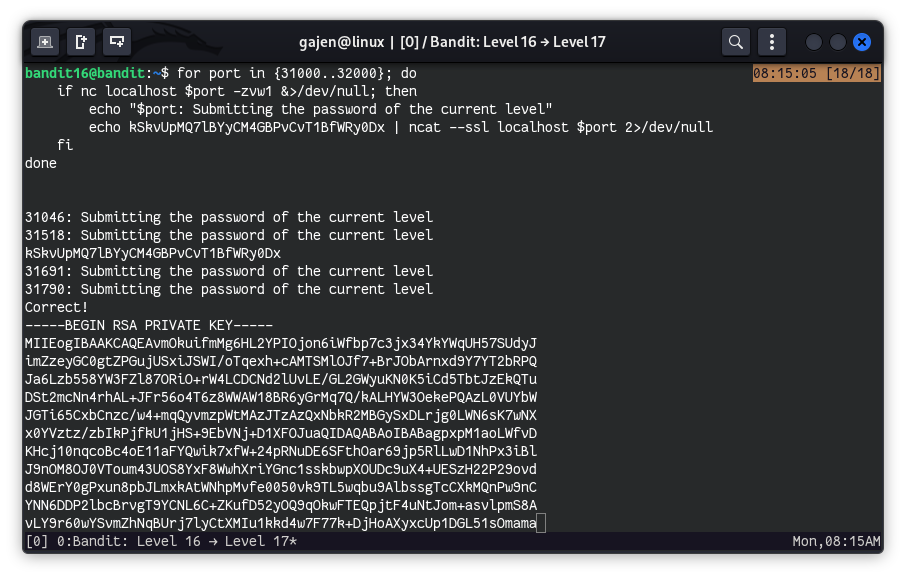
After successfully submitting the current level password to port 31790, we received the SSH private key. Now, we need to copy this key to our machine and connect using the SSH private key to retrieve the password for the next level. I will save this SSH private key as bandit17_id_rsa. Don’t forget to assign the necessary permissions to the SSH private key using chmod 400 bandit17_id_rsa.
So, The SSH syntax will be:
ssh -i bandit17_id_rsa [email protected] -p 2220
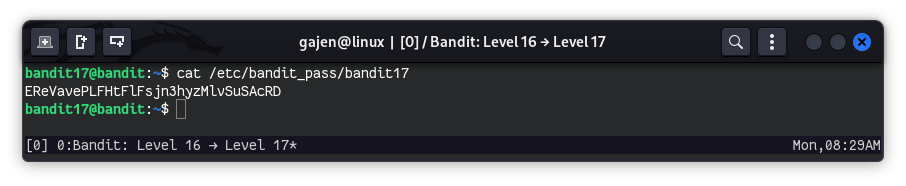
Now, we are logged in as bandit17, we can easily read the bandit17 password.
cat /etc/bandit_pass/bandit17
# Output: EReVavePLFHtFlFsjn3hyzMlvSuSAcRD