The password for the next level is stored in /etc/bandit_pass/bandit14 and can only be read by user bandit14. For this level, you don’t get the next password, but you get a private SSH key that can be used to log into the next level. Note: localhost is a hostname that refers to the machine you are working on.
Here are the details which we have from the previous level:
- Host:
bandit.labs.overthewire.org - Port:
2220 - Username:
bandit13 - Password:
FO5dwFsc0cbaIiH0h8J2eUks2vdTDwAn
So, The SSH syntax will be:
sshpass -p FO5dwFsc0cbaIiH0h8J2eUks2vdTDwAn ssh [email protected] -p 2220
The password for the next level is stored in /etc/bandit_pass/bandit14 and can only be read by the user bandit14. For this level, we don’t get the next password, we get a private SSH key that can be used to log into the next level. So, Let’s copy that private SSH key to our box, and login using private ssh in the next level account.
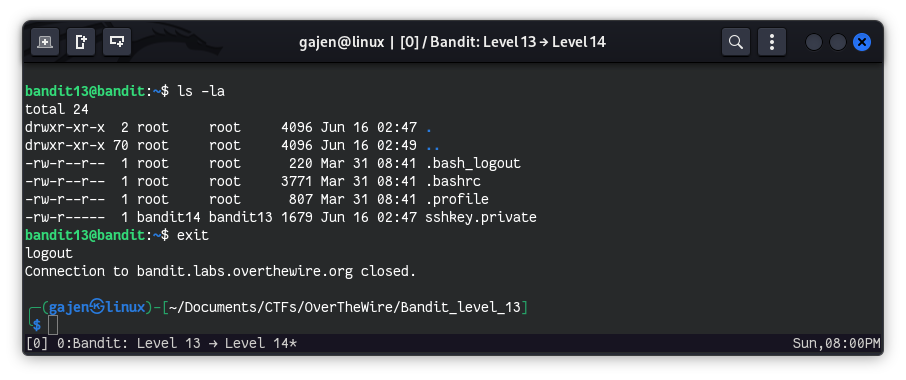
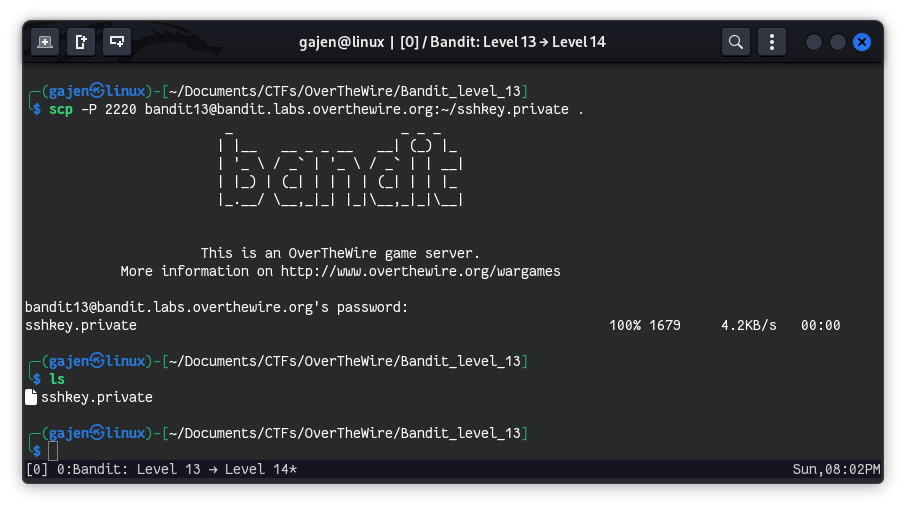
Since we have read privileges for the SSH key, we can simply copy its contents and create a file with that content to log in to the next level. I will use scp, a tool designed to copy files over SSH between hosts.
scp -P 2220 [email protected]:~/sshkey.private .
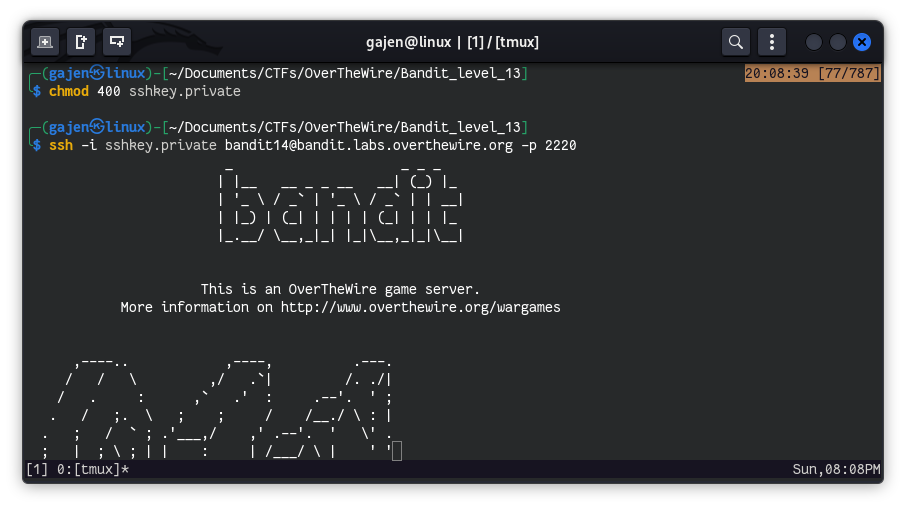
Now that we have the SSH key for the next level user bandit14, we can log in using it after giving appropriate permissions to the SSH file:
chmod 400 sshkey.private
Then, use the following command to connect:
ssh -i sshkey.private [email protected] -p 2220